Installing Argos Internal API
The Argos Internal API is used to power the Vault and Bailment applications.
Note, this is available from Argos v6.0 onwards
Installation Types
The installer can be used to install a production instance of the Argos Internal API.
Instructions to install a TEST / UAT / Training version are available at the end of this document.
Production Installation
Production Installation
- Copy the latest Argos release file to the Web Server (or locate the files over the network).
- Double click on the "Argos.Internal.API.Setup.exe" icon in the Argos.InternalAPI folder of the latest Argos release.
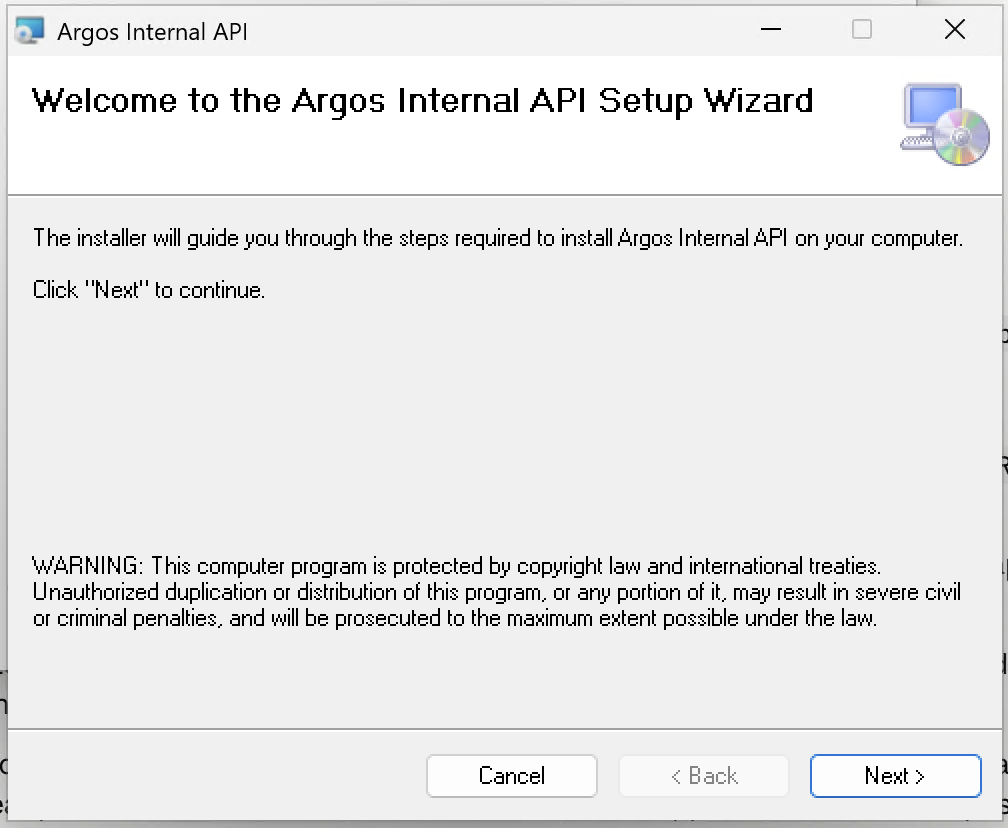
The following dialog will display:
The installer will automatically install the correct ASP.NET Core hosting bundle.
You will then be guided through installing the Argos Internal API itself.
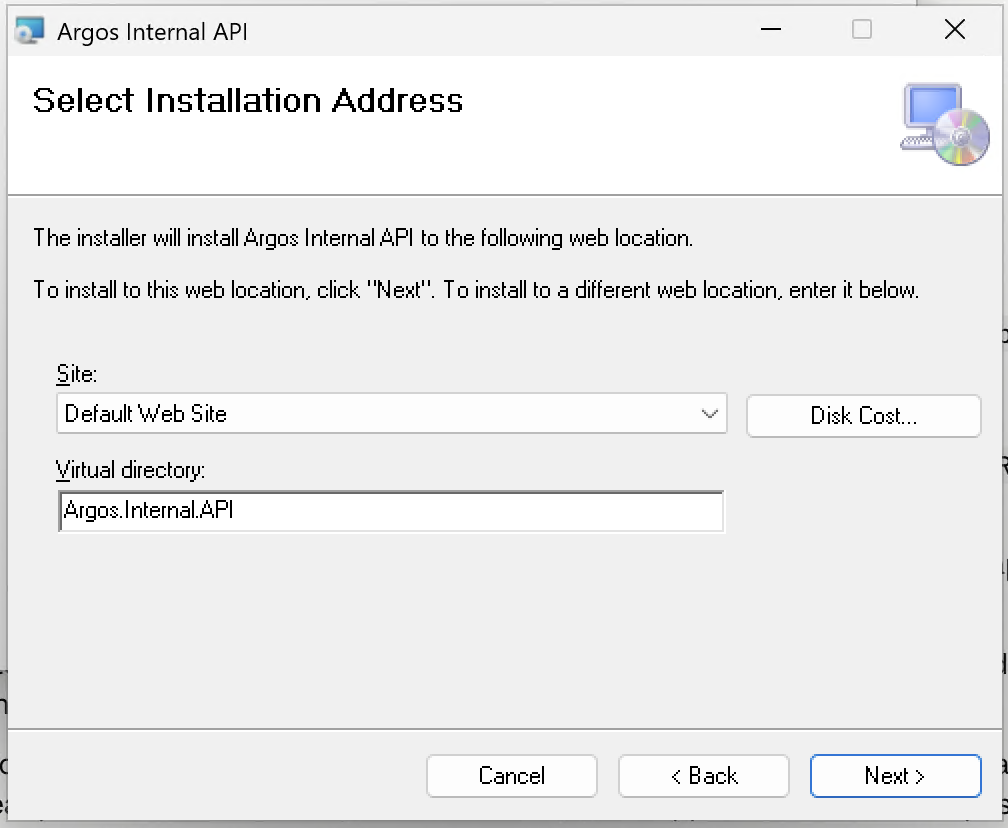
You can choose the IIS Site and Location (the defaults are fine to select)
If this is the first time installing the API, you will be asked to configure the location of your SQL Server instance and the name of the database you use for Vault. The installer will try to auto-detect the name of the SQL Server instance, but you will need to ensure the correct database name is set. You can launch SQL Server to find this.
If you are doing an upgrade, this screen is not shown and the previous settings you have configured will be used.
If you are doing an upgrade, this screen is not shown and the previous settings you have configured will be used.
Once complete, the installer will then prompt you to configure Vault to point to installed API.
Configuration
The Internal API connects to the database using SQL Server authentication. The first time you install the API, you will need to configure this authentication.
- Grant the application pool access in SQL Server.
- The API connects as the Windows identity of its IIS application pool (Argos.Internal.API). That identity needs an explicit login and database user - it has none by default, and the API will fail to start until this is done (it reads its own configuration out of the database at startup).
- If SQL Server is on the same machine as IIS (e.g. a local SQLEXPRESS instance), the app pool's identity is visible to SQL Server as IIS APPPOOL\Argos.Internal.API.
- Run the following against your Vault database (if you changed any of the settings during install, please update accordingly below) - please change YOUR_VAULT_DB to your database name
USE YOUR_VAULT_DB;
CREATE LOGIN [IIS APPPOOL\Argos.Internal.API] FROM WINDOWS;
CREATE USER [IIS APPPOOL\Argos.Internal.API] FOR LOGIN [IIS APPPOOL\Argos.Internal.API];
ALTER ROLE db_datareader ADD MEMBER [IIS APPPOOL\Argos.Internal.API];
ALTER ROLE db_datawriter ADD MEMBER [IIS APPPOOL\Argos.Internal.API];
Verification
To verify the API has been configured correctly:
- Launch Argos Vault
- Go to Control > Internal API Setup in the Tree Menu
- Enter in the URL of the new API e.g. https://<server>/Argos.Internal.API
- Press Test Connection
- A successful message looks like this
- Save & Close to save the setting
If the API is not set up correctly, Argos Vault will show you an error message describing why.
Log Files
These are written to the C:/ProgramData/Argos Financial Systems Limited/Argos.Internal.API/logs.
Uninstallation
- Run the installer again
- Select 'Uninstall'
- This will uninstall the Argos Internal API. It will not uninstall the .NET hosting bundle.
Manual Configuration
If required, you can manually configure the connection settings from the Internal API and the SQL Server using the steps below.
Connection Settings
- Create a ConnectionSettings.config file to specify the Argos Vault database connection to use for the Websites.
- Copy the ConnectionSettings.config.example file and rename it ConnectionSettings.config. The example file can be found in the root folder of the installed website.
- Set the connection details.
{"ConnectionStrings": {"MainDb": "Server=YOUR_SQL_SERVER;Database=YOUR_VAULT_DB;Trusted_Connection=True;TrustServerCertificate=True"}} - Replace < YOUR_SQL_SERVER >, < YOUR_VAULT_DB > with the appropriate values.
Installing a TEST / Training / UAT / Demo Instance
A typical Vault installation will have a production instance that customers use. It is also common to set up another instance of Vault for testing or training purposes. This would involve setting up a second database, odbc connection and configuring Vault to use those. In that scenario, you'd also need to configure another instance of the Internal API.
To do this, follow these steps:
Find the Argos.Internal.API.msi installer in the Argos release and copy to your Web Server
Open up a command prompt as an Administrator
Navigate to the folder you downloaded the msi to
Execute the following command. You can replace "TEST" with either "UAT", "Training" or "Demo" depending on the purpose of setting up the second instance
- msiexec /i Argos.Internal.API.msi MSINEWINSTANCE=1 TRANSFORMS=":TEST"
This will run you through the installation process, and create a new side by side installation for this test instance. This can then be upgraded separately to your production instance. When upgrading, please follow the same steps.
It will install into the API into a separate Virtual Directory, and allows you to configure it to your training Vault db too.
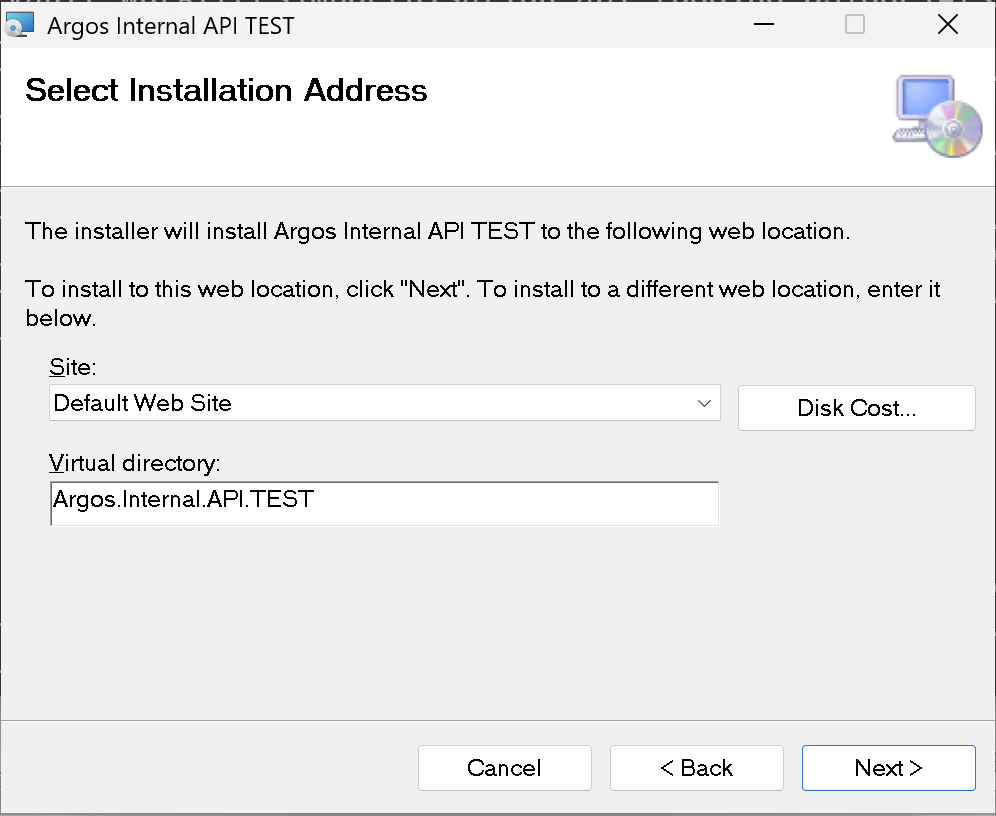
It will install into the API into a separate Virtual Directory, and allows you to configure it to your training Vault db too.
You will then see the two installations side by side in Windows:
The first time you install this TEST environment, you will need to configure the IIS <> SQL Server Authentication. Run the following against your Vault database (if you changed any of the settings during install, please update accordingly below) - please change YOUR_VAULT_DB to your database name
USE YOUR_VAULT_DB;
CREATE LOGIN [IIS APPPOOL\Argos.Internal.API.TEST] FROM WINDOWS;
CREATE USER [IIS APPPOOL\Argos.Internal.API.TEST] FOR LOGIN [IIS APPPOOL\Argos.Internal.API.TEST];
ALTER ROLE db_datareader ADD MEMBER [IIS APPPOOL\Argos.Internal.API.TEST];
ALTER ROLE db_datawriter ADD MEMBER [IIS APPPOOL\Argos.Internal.API.TEST];
Please also ensure to update the url in Control > Internal API Setup in your test / training Vault too.
Related Articles
Installation Instructions
Summary This set of documents details the initial setup requirements for the Argos software. It is recommended that the installation checklist from the appendices is printed as a step by step guideline for the installation task being undertaken. The ...Installing Argos Web API
Copy the latest Argos Vault Release file to the Web Server, (or locate the files over the network). Double click on the "Setup" icon in the Argos.ApiServer folder of the latest Argos Vault Release. Installation The following dialog will display: ...Installing Argos Bailment
Argos Bailment Installing the Bailment Module Application Note: Argos Bailment is a licenced module that is run independently of Argos Vault. If you are not licenced for this module, then this section can be disregarded. New Installations Double ...Installation Prerequisites
Prerequisites The following section outlines the third-party applications required to successfully run Argos. The below applications are not provided as part of the Argos application and it is the responsibility of the client to purchase/licence, ...Internal API Setup
Purpose Allows configuration for the Internal API used to power Vault. Access Control | Internal API Setup Dialog Details Detail Specific Fields Field Description Internal API URL Enter the complete URL for the Internal API. You can press the "Use ...